Does this tool upload my files? How to check for yourself
Every online tool has a privacy page and none of them are evidence. Your browser already ships the thing that settles it. Here is the method, and how our own tools look when you run it on us.
You are about to put a contract, a client's product photos, or an export of your customer list into a website you found on the second page of Google. Before you do, you want one question answered: does this thing upload my file?
Almost every tool answers it in prose. "Your privacy is important to us." "Files are deleted after one hour." "We use bank-grade encryption." None of that is evidence. It is a claim about what happens on a server you cannot see, written by the people who run the server.
The good news is that you do not have to take anyone's word for it, including ours. Whether a file leaves your machine is a question about network traffic, and network traffic is something you can watch. Your browser already ships the tool.
Why a privacy page can't settle it
A privacy policy describes intent. It tells you what a company believes it is doing today, in language a lawyer signed off on, on a page that can be edited tomorrow without telling you.
It also can't see past the company writing it. "We delete your files after an hour" says nothing about the CDN in front of them, the logging on the way in, the backup that ran at 3am, or the third-party error reporter that captured your filename in a stack trace. Those are real things that happen in real architectures, and the person who wrote the privacy page often doesn't know about all of them.
So skip the prose. Watch the wire.
The whole method, in one paragraph
Open the tool in a fresh tab. Open DevTools (F12 on Windows, Cmd+Option+I on a Mac, or right-click anywhere and choose Inspect). Switch to the Network tab, tick Preserve log so a page change doesn't wipe your evidence, and clear the list. Now use the tool properly: drop your file in, hit the button, wait for the result. Every request the page makes will appear in that list, with its method, its destination and its size. If your file was uploaded, there is a POST or a PUT going out that is roughly as big as your file. If there isn't one, it wasn't. That is the entire test, and it takes about thirty seconds.
Two columns do most of the work. Size tells you how much left your machine. Domain (right-click the column headers to switch it on) tells you where it went. A 4MB PDF cannot be uploaded in a 300-byte request, so file size is the single hardest thing for a tool to hide.
What a genuinely local tool looks like
Load the page and you see a burst of activity: HTML, CSS, JavaScript, fonts, maybe a WebAssembly module or two. That is the tool arriving. It should be the noisy part.
Then you use it, and the list stops growing.
That flat line after page load is the signature you are looking for. Drop a 20MB file on a local tool and the Network tab does nothing at all, because the file went from your disk into browser memory and never touched a socket. The processing happens in JavaScript and WebAssembly on your own CPU. We wrote about why WebAssembly makes that possible if you want the architecture behind it.
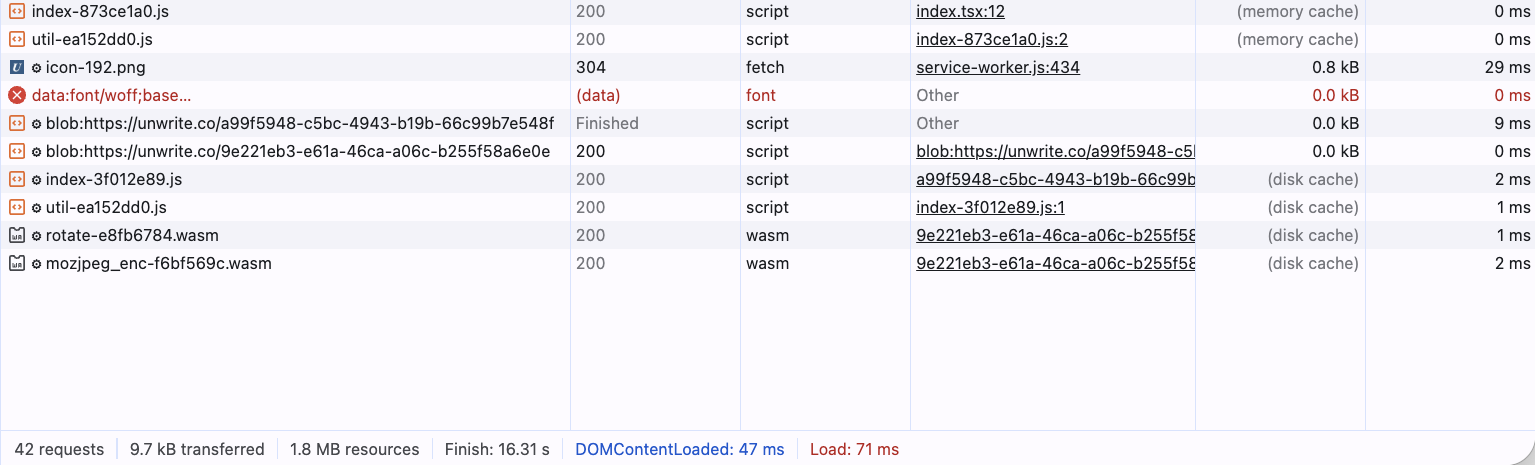
That is a real session on our image compressor, captured with Preserve log ticked. 42 requests, 9.7 kB actually transferred, and the two WASM codecs served from disk cache because a previous visit had already fetched them. No request carries the photo, because the photo never left.
One honest wrinkle, and it is the one that trips people up: a local tool is not always silent. Plenty of them fetch their own machinery from a CDN, because shipping a 12MB image codec with every page load would be daft. Those requests are large, they happen once, and they are GETs coming in. What matters is the direction and the payload, not the count. A GET pulling a WASM binary from a CDN is the tool downloading itself. A POST pushing 4MB to an API is your document leaving.
What an upload looks like, including the sneaky ones
The obvious version is easy to spot. A POST to something like /api/upload or /convert, with a request size that matches your file, usually with a progress bar on screen to match. Click the request and open the Payload tab. You will see your filename sitting there in a multipart form body. No ambiguity.
The less obvious ones are worth knowing, because they are the reason "we don't upload your files" can be true and still not be the whole story:
- Beacons.
navigator.sendBeacon()fires a small POST that survives the page closing. In DevTools it shows up under the Other or Ping type rather than Fetch/XHR, which is why people scrolling for XHR miss it. It is usually analytics, but it is still a request you didn't ask for. - Telemetry with a boring name. Paths like
/collect,/event,/track,/t.gifor/px. Often tiny, often an image request rather than a POST, often carrying a page URL and a session ID. - Error reporters. Sentry, Bugsnag and friends fire on exceptions. Harmless in intent, but a stack trace can include filenames, and some setups attach a chunk of application state along with it. Filter for
ingestorsentryand see. - Session replay. Hotjar, FullStory, Microsoft Clarity. These stream a reconstruction of your screen, continuously, while you work. If you are pasting a customer's address into a form, that is the one to care about.
- The filename-only upload. Some tools send a manifest before the file: name, size, MIME type, sometimes a hash. Small request, real information leak. Product names, client names and case numbers live in filenames.
None of those are "your file was uploaded". Several of them are still things you would want to know about before pasting a supplier agreement into the page. The security side of free tools gets worse than this, but the Network tab catches all of it in the same thirty seconds.
Try it on us
The method is only worth anything if it survives being pointed at the person recommending it. So point it at us. Here is what you will actually see, including the parts that aren't zero.
**The HTML cleaner** is the clean case. Load the page, clear the log, paste in a wall of Word markup, hit clean. Nothing new appears. It is pure JavaScript operating on a string in memory, so there is nothing for it to fetch and nowhere for your content to go.
**The image compressor** is the honest case. The first time you compress something, you will see GET requests to cdn.jsdelivr.net pulling down the WebAssembly codecs (MozJPEG, OxiPNG, WebP, AVIF). They are chunky, they are cached afterwards, and they are the tool fetching its own encoder. Your photo is in none of them. Compress a second image and the network stays flat. Full walkthrough in compressing images without uploading them.

Here is that same panel on a first visit. The codecs arrive from jsDelivr, 57.2 kB of encoder, initiated by the page. Both rows are GETs pulling machinery in. Neither is your image going out.
**The PDF editor** behaves the same way with bigger binaries. WASM in from jsDelivr on first use, then silence while you merge, split, compress and sign. The one exception is deliberate and visible: if you use the sign-on-your-phone handoff, you will see small polls to /api/signature-session and one encrypted blob arriving. That blob is your signature, encrypted end to end, with the key travelling in the URL fragment after the # that browsers never send to servers. The PDF itself never moves.
For completeness, we run exactly four endpoints of our own, and they are all listed on the security page with what each one sees:
- 1The signing relay above, which holds ciphertext it has no key for, for ten minutes.
- 2A fetch proxy for the social share preview, which loads a public URL you typed because browsers block a page from reading another site directly.
- 3An image proxy for the same tool, used only when you export a PNG.
- 4An opt-in edge proxy for remote LLM providers that block browser CORS. Off by default. When you switch it on, your prompt and your key pass through our edge on the way to the server you chose.
The LLM tools also download their models from Hugging Face, which is a large, visible, one-time GET, and the reason a 3.7GB model can run in a tab at all.
So the claim is not "our pages are silent". It is the narrower, checkable one: your content never leaves your device. Libraries come down. Content does not go up. That distinction is the whole thing, and it is the one the Network tab is good at proving.
While you are in there, check the response headers on any page for content-security-policy. It shows what the browser itself is enforcing, independently of anything our code does. We also went through and ripped out every tracker we found on our own CDN, including five scripts Cloudflare was injecting by default that we hadn't asked for.
The offline test
The Network tab proves nothing was sent. Going offline proves nothing can be sent, which is a stronger claim and even easier to run.
Load the tool once with the network on, so anything it needs to fetch is cached. Then either flip Offline in the DevTools Network throttling dropdown, or just turn your wi-fi off. Now use it.
A local tool keeps working. Buttons respond, files process, downloads save. A server tool falls over immediately, usually with a spinner that never resolves or an error about the connection. There is no third outcome, and nothing a marketing page can do about it.
On this site you can go further and install Unwrite as a Progressive Web App, then work with the network disabled permanently. If nothing can leave, nothing can leak. That is the top rung of the ladder on our security page, and most people never need it.
Where we're the exception
One product on this site does not pass the test above, and we would rather say so plainly than let you discover it in DevTools.
Unwrite Voice is a server product. It lives at voice.unwrite.co, it has accounts, and the generation happens on a server, not in your tab. Watch its Network tab and you will see your brief going out and your draft coming back. That is not a leak, it is the product.
The reason is simple: Voice learns how you write from your own samples and drafts new work in that voice. That needs a model far past anything a browser tab can hold, and it needs your samples to persist between sessions rather than vanishing when you close the tab. You cannot do that locally today, so we do it honestly instead: it is a separate product, on a separate subdomain, with its own privacy policy, outside the website policy that covers the free tools.
If your text must never leave your device, use Unwrite GPT, which runs in the browser and is free. If you want a model that has learnt your voice, Voice is the trade, and now you know exactly what you are trading.
The checklist
Reusable on any tool, ours included. Takes under a minute.
- 1Open DevTools before you load the tool. Network tab, Preserve log on, clear the list.
- 2Use it for real. A dummy 2KB file proves nothing. Use something big enough that an upload would be obvious.
- 3Sort by Size. Anything going out that's within a mile of your file's size is your file.
- 4Check the direction. Large GETs coming in are the tool loading itself. POSTs and PUTs going out are the ones to open.
- 5Click anything suspicious and read the Payload tab. Your filename in a multipart body ends the conversation.
- 6Look past Fetch/XHR. Switch the filter to All and scan for pings, beacons and image requests to domains you don't recognise.
- 7Kill the network and try again. Still works offline means it was never a server tool. Breaks instantly means it always was.
- 8Then read the privacy page, if you like. By that point you already know whether it's true.
That is the deal we would rather be judged on. Not "trust us", but "here is the method, run it on us, and tell us if we're wrong". More on the philosophy in the rise of privacy-first web tools, and the honest version of what we can and cannot protect you from is on the security page.