Adding a favicon to Webflow: the complete guide
Webflow takes one square image and generates the rest. Here is where the setting lives, what Webflow puts in your head tag, and the two things you still have to add by hand.
What Webflow asks you for
One square image. That's it.
This is worth saying up front, because most favicon guides hand you a folder of sixteen files and a block of link tags. Webflow doesn't want either. You upload a single square source, Webflow generates the sizes, and it writes the tags into your published head for you.
The sizes it generates, from Webflow's own documentation:
| Icon | Size | Where it shows up |
|---|---|---|
| Favicon (light) | 32x32 | Browser tabs and bookmarks |
| Favicon (light) | 48x48 | Google search results |
| Favicon (dark) | 32x32 | Browser tabs in dark mode (optional) |
| Webclip | 256x256 | Safari bookmarks, home screen |
| Touch icon | 180x180 | Apple touch icon |
| Touch icon | 192x192 | Android home screen |
So the sizes Webflow "silently ignores" turn out to be all of them, in the sense that it never asks you for a set. If you arrive with a generated favicon bundle, the uploader wants exactly one file out of it. The rest of the bundle still earns its keep, but only on the custom-code route further down this post.
Accepted formats are PNG, JPG, GIF, ICO and SVG. Worth knowing about that last one: Webflow rasterises SVG uploads to PNG for cross-browser compatibility, so you get the convenience of an SVG source without the crisp-at-any-size benefit of an actual SVG favicon. If a true SVG favicon matters to you, that's a custom-code job.
One gap in the docs: Webflow states no minimum source dimension anywhere I could find. Give it 512x512 or larger. The 256 webclip and the 192 touch icon both need real pixels to downscale from, and there's no upside to feeding it something small.
Where the setting lives
Site settings > General > Icons.
If you're following an older tutorial, you'll see "Project settings" and a section called "Favicon & Webclip" with two separate upload slots. That UI is gone. The old University lesson at university.webflow.com/lesson/favicon-and-webclip now 404s, and the current docs live in the Help Center. Webflow never published a rename announcement that I could find, so just take the current path as the current path.
Step by step
- 1Open Site settings for the site you want to change (not Workspace settings, which is a different screen).
- 2Go to the General tab.
- 3Scroll to Icons.
- 4Click Upload icon and pick your square image.
- 5Select which icons you want that image applied to.
- 6Optional, and new: once a light favicon is in place, an Add dark mode favicon option appears. Upload the inverted version here.
- 7Click Apply.
- 8Publish your site. Nothing you did in step 7 is live until you do.
- 9Refresh the live site in your browser.
Step 8 catches people out more than it should. Webflow settings save instantly, so it feels finished. It isn't. Icons ship with a publish like everything else.
The 256x256 webclip, and why it is separate
The webclip is the icon iOS uses when someone saves your site to their home screen or bookmarks it in Safari. It's separate from the favicon because it's used at a completely different size and in a completely different context: a 32x32 tab icon can be a single letter, while a 256px home screen tile sits next to real app icons and gets judged against them.
Two things about it are worth flagging honestly.
First, iOS composites home screen icons onto a solid background. Transparent pixels don't stay transparent - they get filled. If your logo is a white mark on a transparent background, it becomes a white mark on white. Give the webclip source a real background colour.
Second, there's a mismatch between the docs and the output. Webflow's table lists the webclip at 256x256, but the published markup on a recently republished Webflow site carries no 256 tag at all. What it emits is a 180x180 apple-touch-icon, plus 192 and 512 PNG icons. Our best guess is that 256 describes what Webflow generates and stores rather than what it declares in the head. Either way, the practical advice doesn't change: upload one large square, let it generate.
What Webflow actually writes into your head
This part isn't documented, so it's worth showing. A Webflow site published under the current system emits something close to this:
<link href="https://cdn.prod.website-files.com/.../favicon.png" rel="icon" type="image/png" sizes="32x32" media="(prefers-color-scheme: light)"/>
<link href="https://cdn.prod.website-files.com/.../favicon.png" rel="icon" type="image/png" sizes="32x32" media="(prefers-color-scheme: dark)"/>
<link href="https://cdn.prod.website-files.com/.../favicon.png" rel="icon" type="image/png" sizes="48x48"/>
<link href="https://cdn.prod.website-files.com/.../favicon.png" rel="apple-touch-icon" sizes="180x180"/>
<link href="https://cdn.prod.website-files.com/.../favicon.png" rel="icon" type="image/png" sizes="192x192"/>
<link href="https://cdn.prod.website-files.com/.../favicon.png" rel="icon" type="image/png" sizes="512x512"/>
Sites that haven't been republished since the change still carry the old two-tag version, which declares type="image/x-icon" on a PNG. Harmless, but if that's what you see in view-source, republishing is what moves you onto the new set.
Two details that matter later. Every icon is served from cdn.prod.website-files.com on a hashed filename, and the filename you uploaded is visible in your public HTML (Webflow's docs warn about this, so don't name the file client-logo-FINAL-v3-approved.png).
What Webflow will not let you set
Dark mode used to be on this list. It isn't any more: since May 2026 Webflow ships a native dark favicon slot and serves it with a prefers-color-scheme media query. If you've read an older guide telling you to hand-roll this with custom code, that advice is out of date.
Two things are still genuinely missing.
A web app manifest. No Webflow setting produces one, and no icon upload generates one. There's a trap here too: /manifest.json on a Webflow site is already occupied by Webflow's own redirect manifest, which is a completely different file that serves site routing information to browsers. So you can't just drop a manifest at the obvious path and expect it to work.
A theme-colour meta tag. No native setting, at all. The browser chrome tint on mobile Chrome and the Safari tab bar both come from <meta name="theme-color">, and Webflow has no field for it.
There's a third limit underneath both of these, and it's the real one: Webflow cannot serve arbitrary static files from your site root. /favicon.ico on a Webflow-hosted site is a 404. So is /site.webmanifest. Every asset lives on the CDN under a hashed name, which is why the manifest problem is harder than it looks.
The custom-code workaround, and its edges
Custom head code lives at Site settings > Custom code > Head code, with a 50,000 character limit per field. It requires a paid Workspace plan (Core, Growth, Agency or Freelancer) or an active Site plan. Webflow's wording is "an active Site plan" without naming a tier, and Starter is technically a free Site plan, so I won't tell you the free tier definitely works or definitely doesn't. Check it on your own site before you promise a client anything. Custom code also only goes live on publish, though it does show in preview mode.
For theme colour, that's a one-liner:
<meta name="theme-color" content="#2e5c85">For the manifest, be realistic about the cost. You need the JSON file served from somewhere Webflow will actually host, and the only supported route for a file at a fixed path is the .well-known folder: JSON, TXT or MD only, 100KB maximum, 30 files maximum, Premium Site plans and above, and not available on webflow.io staging domains. Webflow doesn't document this as a manifest solution, so treat it as an inference from two documented features rather than a blessed path. Then link it from head code and point its icon URLs at absolute CDN URLs, since relative paths have nothing sensible to resolve against.
Honestly? For most Webflow marketing sites, skip the manifest. It buys you an install prompt and an Android splash screen. If you aren't shipping a PWA, the native icon set plus a theme-colour meta tag covers what visitors will actually see. Our guide to theme colours, manifests and browser branding walks through what each of those files buys you, so you can decide rather than cargo-cult the whole set.
Publishing, and the cache wait
Webflow documents no propagation window for favicons. There's no "allow up to 24 hours" line anywhere in the current docs, and I'd rather tell you that than invent a number.
What's actually going on is simpler than propagation. Each upload gets a fresh hashed filename, so the CDN is serving a genuinely new URL and has nothing stale to purge. Any delay you experience is your own browser holding onto the old icon. Hard refresh, then try a private window, then try a different browser. If the private window shows the new icon, everything is working and you're just looking at a local cache.
Google is the slower one. Its crawl schedule decides when the 48x48 icon updates in search results, and that's out of Webflow's hands and yours.
Generate the full set first, then upload
Webflow only needs one file, so why generate a set at all? Two reasons. You want to see your mark at 16px before you commit to it, and if you ever take the custom-code route you'll want the rest of the files already sitting in a folder.
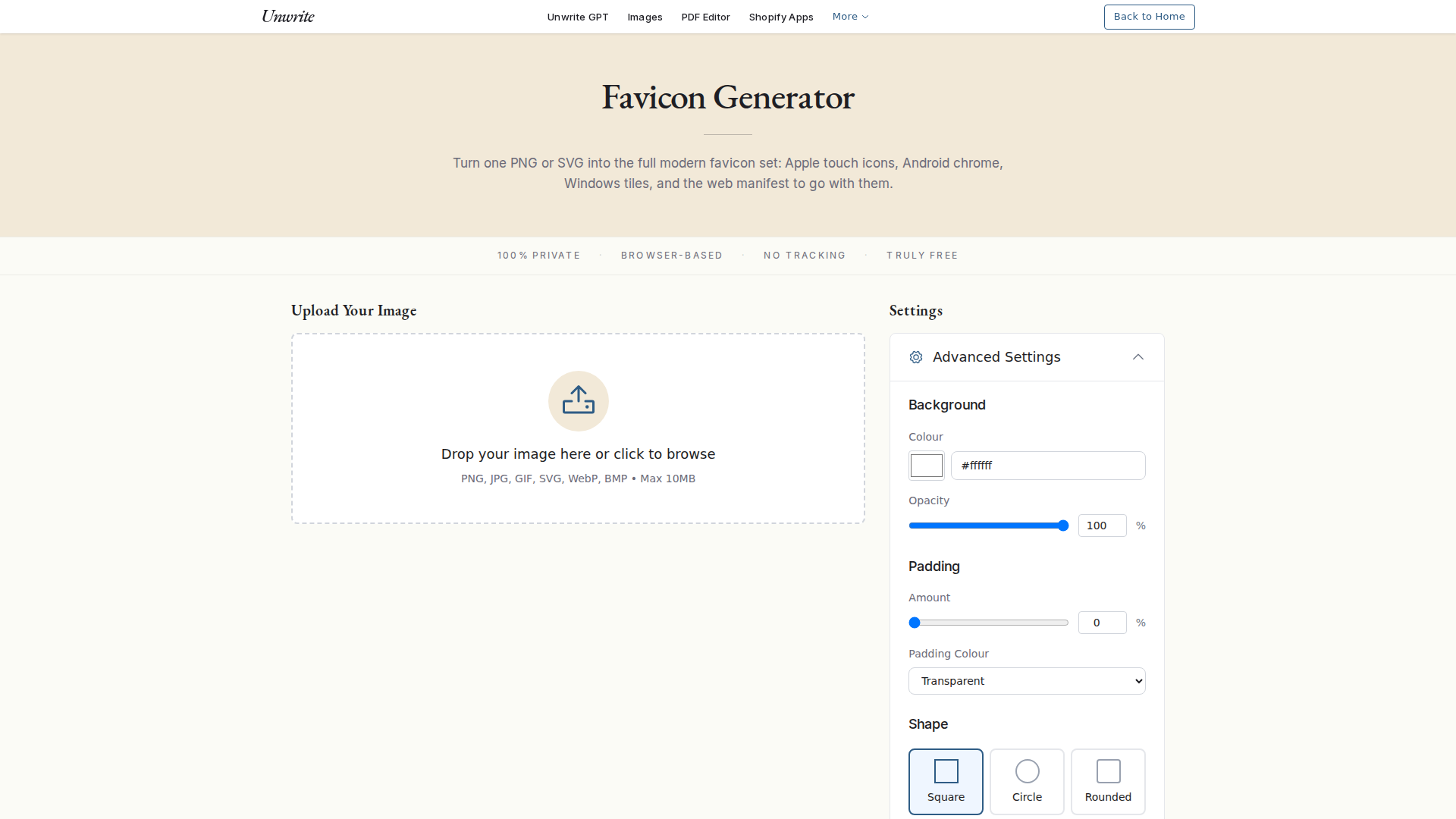
Our favicon generator runs entirely in your browser. Drop in a logo and it produces favicon.ico (16, 32 and 48 packed into one file), the PNG sizes, apple-touch-icon.png at 180, the 192 and 512 Android icons, a maskable 512, and a manifest.webmanifest to go with them. Background colour, padding and shape (square, circle or rounded) are all adjustable, which is how you solve the transparent-webclip problem before it reaches iOS.
Two honest limits. It outputs an SVG favicon only when you feed it an SVG source, since it can't invent vectors from a PNG. And it has no light/dark switch: for a dark variant, invert your logo in your design tool and run it through a second time. That gives you the two files Webflow's dark mode slot wants.
For the design side of this - what survives at 16px, what turns to mush, and why your full logo probably isn't the answer - see favicon design best practices. If you're weighing Webflow against other builders, Squarespace's approach to dark mode favicons is the closest comparison, and it got there first.
The checklist
- Square source image, 512x512 or larger, in PNG, JPG, GIF, ICO or SVG.
- Solid background on the version destined for the webclip, so iOS doesn't fill it for you.
- Uploaded at Site settings > General > Icons, applied to the icons you want.
- Dark mode variant added in the slot that appears after the light one.
- Published. Settings alone change nothing on the live site.
- Checked in a private window, not just the tab you've had open all afternoon.
- Theme-colour meta tag added via Site settings > Custom code > Head code, if you want the mobile browser chrome to match your brand.
- Manifest skipped, unless you're actually building a PWA and have a Premium plan to serve it from.
That's the lot. Webflow's icon handling is genuinely one of the better implementations among the site builders, and the two gaps it has left are small and honest ones.