Text Comparison Made Simple: A Guide to Our Diff Tool
Discover how to effectively compare documents, track changes, and identify differences with our privacy-first text comparison tool.
Why You Need a Reliable Text Comparison Tool
Ever tried to spot the differences between two versions of a document by reading them side by side? It's like playing the world's most boring game of spot-the-difference - except the stakes are real. Whether you're reviewing contract changes, tracking document revisions, or comparing code versions, missing a small change can have big consequences.
That's where Unwrite's Text Comparison tool comes in. It's a powerful diff checker that instantly highlights every difference between two texts, from single character changes to entire paragraph rewrites. Built with the same privacy-first philosophy as all our tools, it works entirely in your browser - your sensitive documents never leave your device.
What Makes Our Diff Tool Different
In a world of online comparison tools that upload your documents to their servers, process them in the cloud, and potentially store them forever, our approach stands out:
Getting Started: Your First Comparison
Step 1: Open the Tool
- Complete Privacy: All processing happens in your browser. Your texts never touch our servers
- No Account Required: Start comparing immediately. No sign-up, no email, no friction
- Instant Results: Browser-based processing means no upload time, no server queues, just instant comparisons
- Clean Interface: Focus on what matters - the differences - without cluttered ads or distracting upsells
- Professional Output: Export-ready results that work for formal documentation and reports
Navigate to unwrite.co/compare-text. The tool loads instantly, ready to use. No plugins, no downloads, no waiting.
Step 2: Add Your Texts
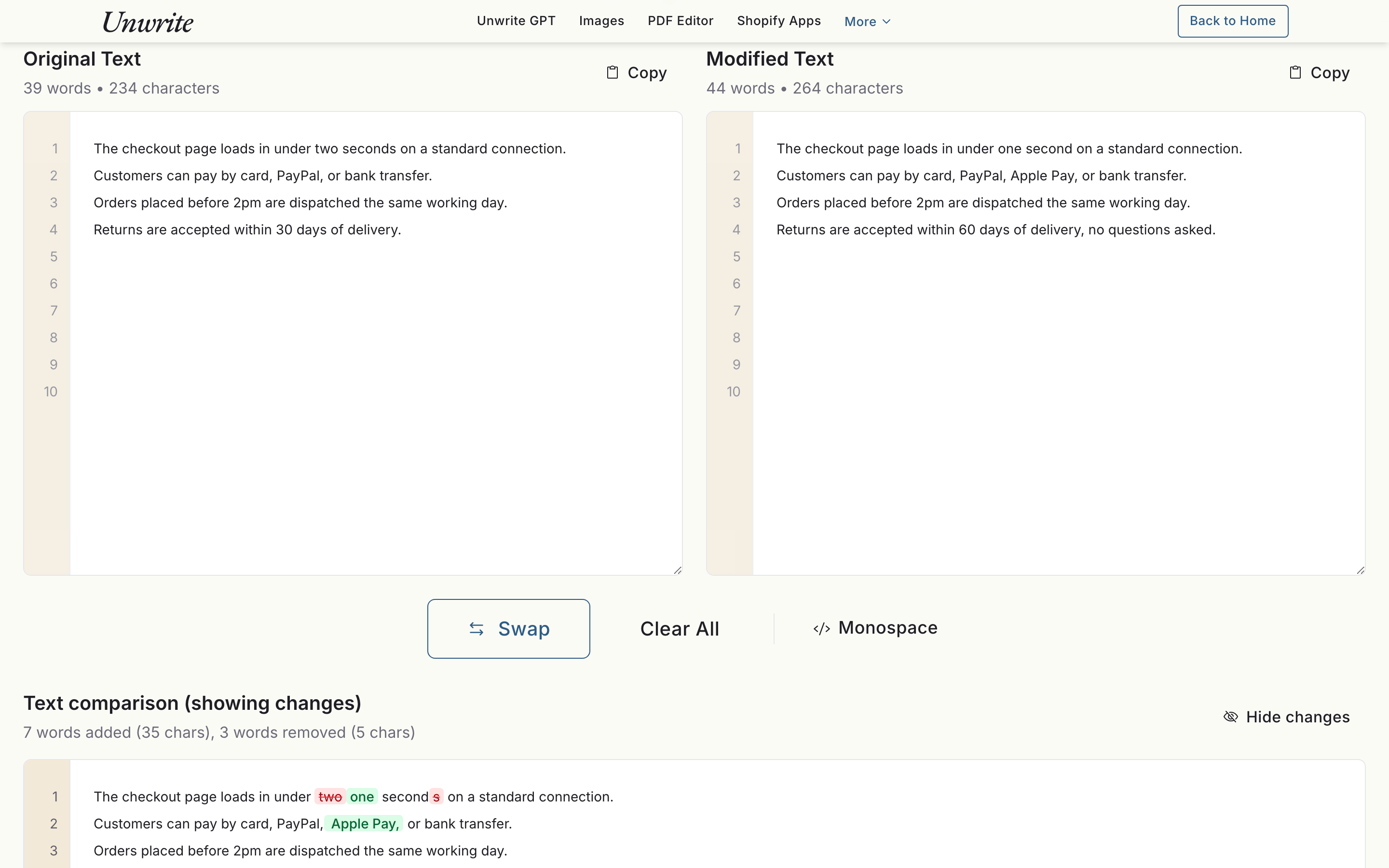
You'll see two text panels side by side:
- Left Panel: Paste your original or "before" text
- Right Panel: Paste your modified or "after" text
The panels accept any text format - plain text, rich text copied from Word or Google Docs, code, markdown, or any other text-based content. Each panel can handle documents of any reasonable length.
Step 3: Let It Compare
There's no Compare button to hunt for. The moment both panels have content, the comparison appears underneath them. Edit either panel and the result updates as you type.
If the two texts together run past 250,000 characters, the tool pauses first and warns you that a comparison that size can make the browser sluggish, especially on a phone or an older machine. You can proceed anyway or clear the panels - your call, we just don't want to freeze your tab without asking.
Step 4: Review the Results
The comparison view uses intuitive colour coding:
- Red strikethrough: Text that was removed from the original
- Green highlights: Text that was added in the new version
- Unchanged text: Appears normally, providing context for the changes
Understanding the Comparison View
The Two Input Panels
Your original and modified texts sit side by side while you work, each with its own line numbers, live word and character count, and a Copy button. The panels scroll together, so the same part of both versions stays in view.
The Inline Diff
The comparison itself is a single inline view under the panels: deletions in red strikethrough, additions in green, everything else as plain context. A "Hide changes" toggle switches it to the clean modified text with the deletions dropped, which is handy when you want to read the result rather than audit it. A legend under the view labels the two colours.
The Change Summary
Above the diff, a one-line summary gives you the scale of the change: words added (with the character count), and words removed (with the character count). Word counts only include tokens with a letter or a digit in them, so swapping a smart quote for a straight one doesn't inflate the numbers.
Real-World Use Cases
Legal Document Review
When reviewing contract revisions or legal amendments, every word matters. Our tool helps legal professionals quickly identify all changes between document versions, ensuring nothing slips through the cracks. The privacy-first approach means sensitive contracts stay secure.
Content Editing and Revision
Writers and editors use our tool to track changes between drafts. See exactly what your editor changed, or show clients precisely what improvements you've made to their content. The clear visual diff makes revision discussions more productive.
Code Review and Debugging
While not a full Git replacement, our tool excels at quick code comparisons. Debug by comparing working and broken versions, review code changes before meetings, or help students understand what changed between examples.
Academic Integrity
Educators use our tool to compare student submissions, checking for unauthorised collaboration or tracking how drafts evolved. The browser-based processing ensures student work remains confidential.
Translation Verification
Compare original text with translations to ensure nothing was omitted or added. Particularly useful for technical translations where accuracy is critical, or for managing multilingual content updates.
The Controls You Actually Get
Monospace
Switch both panels and the diff to a monospace font. Worth turning on for code, CSV rows, or anything where column alignment carries meaning.
Swap
Flips the two panels. Useful when you've pasted the versions the wrong way round and the diff is reading backwards.
Clear All
Empties both panels and resets the large-text warning in one click.
Line numbers
Always on, in both input panels and down the left of the diff. Nothing to enable - they're there so you can say "line 214" in a review and have everyone land in the same place.
Saving or sharing results
Click "Export to PDF" under the diff. The tool builds a formatted report in your browser - highlighting intact, line numbers down the side, the added/removed summary at the top - opens it in a new tab and hands it to your browser's print dialogue, where you choose "Save as PDF". (If nothing appears, check your popup blocker.) Copying the text out of either panel works too. We don't store comparisons, so if a diff matters, export or copy it before you close the tab.
Privacy and Security Deep Dive
Your documents often contain sensitive information - financial data, personal details, proprietary content. That's why we built our comparison tool with uncompromising privacy:
How Browser-Based Processing Works
When you paste text into our tool, it stays in your browser's memory. The comparison algorithm runs entirely in JavaScript on your device. This isn't just a privacy feature - it's faster too, eliminating upload/download time.
What We Can't See
Verification
- The text you're comparing
- How often you use the tool
- What types of documents you compare
- Any results or exports you create
Don't trust, verify. Open your browser's network inspector and paste both versions in. You'll see the page fetch its own code and assets, exactly as any website does, and nothing carrying your text. There's no upload endpoint for your content, so there's nothing for a request to carry it to.
Tips for Effective Comparisons
Prepare Your Texts
For best results, ensure both texts use consistent formatting. If comparing content from different sources (like PDF vs Word), consider pasting both into a plain text editor first to normalise formatting.
Use the Toggle
Leave "Show changes" on while you're auditing, then hide the changes when you want to read the modified text as a reader would see it. Two passes over the same comparison, and you catch different things in each.
Work in Sections
For very long documents, consider comparing section by section. This makes changes easier to review and discuss, especially when collaborating with others.
Save Important Comparisons
Since we don't store anything, remember to export important comparisons. The PDF report preserves the highlighting and opens anywhere, without our tool and without a browser.
Common Comparison Scenarios
Version Control Without Git
Not everyone uses Git, but everyone needs version tracking. Our tool provides a simple way to compare file versions without command-line complexity. A practical option for non-technical users who need professional comparison capabilities.
Email Thread Analysis
Copy long email threads into our tool to see how responses evolved. Identify what was quoted, what was changed, and what was added. Invaluable for understanding complex negotiations or discussions.
Website Content Updates
Compare old and new website copy to ensure all requested changes were implemented. Particularly useful when working with multiple stakeholders or reviewing work from contractors.
Policy and Procedure Updates
When company policies change, stakeholders need to understand exactly what's different. Our tool makes it easy to create clear change summaries that highlight every modification.
Comparing Unwrite to Other Tools
Many online diff checkers exist, but most follow the same pattern: upload your documents to their servers, wait for processing, hope they delete your data. Some require accounts, many include ads, and few respect your privacy.
Unwrite's approach is different. By processing everything locally, we eliminate privacy concerns entirely. You get professional-grade comparison features without compromising security. It's the tool we wished existed, so we built it.
Integration with Other Unwrite Tools
Our Text Comparison tool works perfectly alongside other Unwrite tools:
Start Comparing with Confidence
- Compare AI text before and after using Unwrite GPT
- Track changes in documents exported from our PDF Editor
- Verify consistency across multiple pieces of humanised content
Ready to compare documents without compromising privacy? Visit our Text Comparison tool and experience the difference. No sign-ups, no uploads, no tracking - just powerful, private text comparison that works instantly in your browser.
Whether you're reviewing contracts, tracking document changes, or comparing any texts, our tool provides the professional features you need with the privacy you deserve. Because your documents should remain yours.