The Complete Guide to Unwrite GPT: Humanise Your AI Content
Master the art of transforming AI-generated text into authentic human writing. Learn how Unwrite GPT removes AI fingerprints whilst preserving your message.
What is Unwrite GPT?
Unwrite GPT is a sophisticated text humanisation tool that transforms AI-generated content into natural, authentic human writing. Unlike simple paraphrasers or spinners, it addresses the deep statistical and linguistic patterns that make AI text detectable - from robotic sentence rhythms to overused transitions and formulaic structures.
Built with privacy at its core, the humanising runs directly in your browser. Nothing is uploaded unless you choose to connect a remote AI provider with your own key, and that's a switch you have to flick yourself. Your text is never stored by us and never becomes training data for anything of ours. It's like having a professional editor who specialises in making AI content sound genuinely human, working on your device.
Why AI Text Needs Humanisation
AI writing tools have revolutionised content creation, but they leave behind distinctive fingerprints. These patterns aren't just stylistic quirks - they're fundamental to how language models generate text:
- Low Burstiness: AI tends to produce sentences of similar length and structure, creating a monotonous rhythm that feels unnatural
- Predictable Patterns: Overuse of certain transitions ("Furthermore", "Moreover"), conclusions ("In conclusion"), and phrases ("delve into", "tapestry of")
- Forensic Artefacts: Technical issues like smart quotes, em-dashes, and invisible Unicode characters that don't appear in human typing
- Uniform Voice: Lack of the natural variation, personality quirks, and occasional imperfections that characterise human writing
These patterns make AI content feel hollow, even when factually accurate. Worse, they're increasingly detectable by both human readers and automated detection systems, potentially harming your content's credibility and search rankings.
How Unwrite GPT Works
Unwrite GPT employs a multi-layered approach to transform AI text into genuinely human-sounding content:
1. Forensic Cleanup
First, it removes technical artefacts that betray AI origin:
2. Rhythm Restoration
- Normalises punctuation (smart quotes to straight quotes)
- Fixes spacing issues and invisible characters
- Standardises dashes and other typography
- Removes Unicode anomalies that humans rarely type
Next, it addresses the monotonous patterns:
3. Language Naturalisation
- Varies sentence length to create natural rhythm
- Breaks up repetitive structures
- Introduces appropriate paragraph variations
- Adds the "burstiness" that characterises human writing
Finally, it replaces AI's favourite phrases with natural alternatives:
Getting Started: Your First Humanisation
Step 1: Navigate to Unwrite GPT
- Swaps overused transitions for varied connectives
- Removes flowery, unnecessarily complex language
- Eliminates repetitive sentence starters
- Preserves meaning whilst changing predictable patterns
Visit unwrite.co/gpt. No sign-up required, no email needed. The tool loads instantly and works entirely in your browser.
Step 2: Paste Your AI Text
Copy your AI-generated content and paste it into the left panel. The tool automatically detects whether you've pasted rich text (with formatting) or plain text. Rich text provides more context about formatting patterns, potentially improving results.
Step 3: Check Detection Settings
Unwrite GPT automatically detects your English variant (British, American, Canadian, Australian, or New Zealand) based on spelling and vocabulary patterns. You can manually override this if needed - useful when writing for specific audiences.
Step 4: Process Your Text
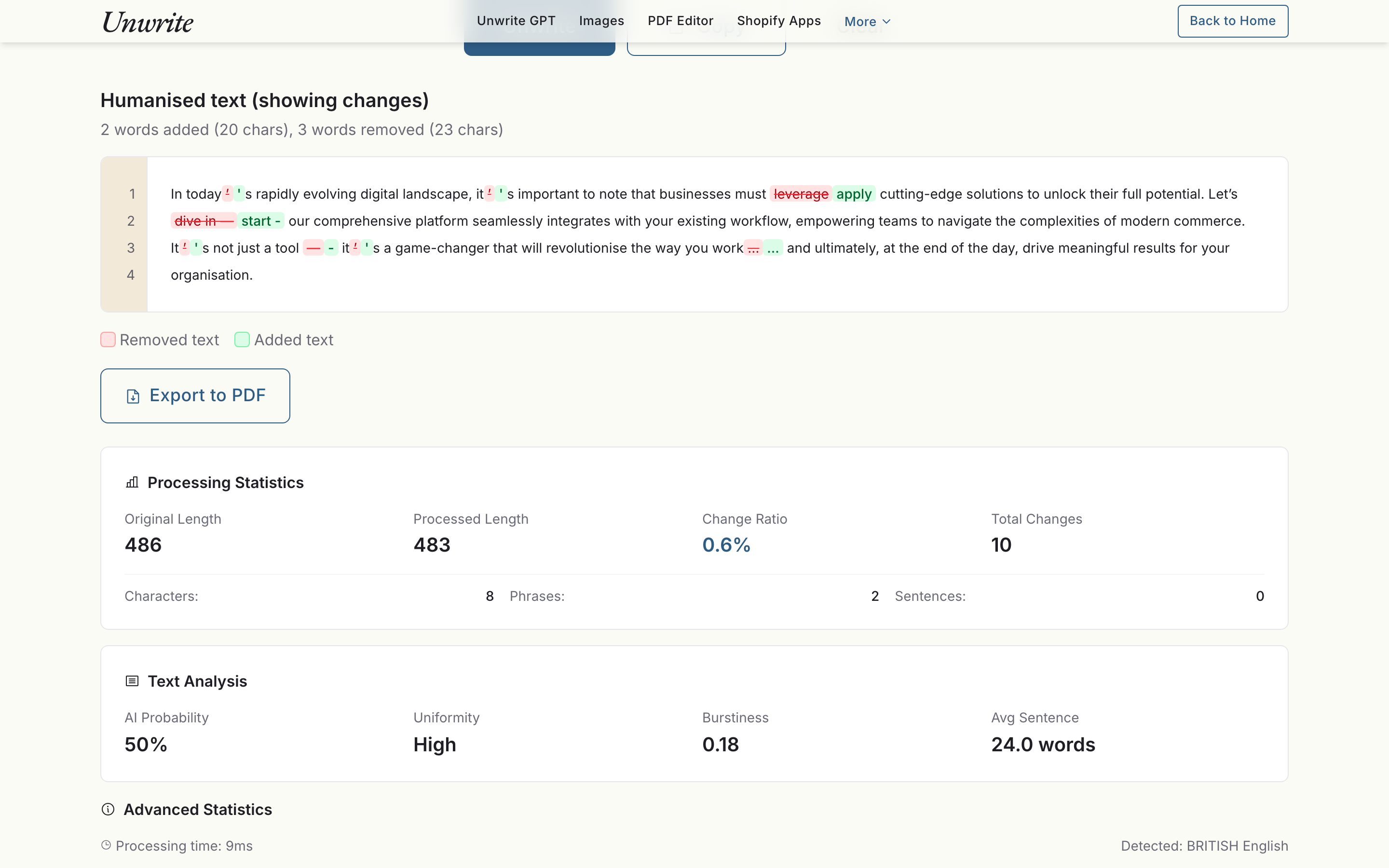
Click the "Unwrite" button. Processing happens instantly in your browser. Watch as the humanised version appears in the right panel, with all AI fingerprints removed whilst preserving your original message.
Leave "Show diff" ticked and you get the change-by-change view underneath, with the processing statistics below that.
Step 5: Copy and Use
Click "Copy" to grab your humanised text. That's it - your content is ready to use, indistinguishable from natural human writing.
Advanced Features and Settings
Keyboard-Only Mode
Enable this option to remove all characters not found on standard US/UK keyboards. Particularly useful when you need to ensure compatibility with older systems or when submitting text through forms that might not handle special characters well.
Regional English Preservation
Unwrite GPT respects regional spelling differences. It won't change "colour" to "color" or "realise" to "realize" unless you switch regions. This intelligent preservation ensures your content remains appropriate for your target audience whilst still removing AI patterns.
Format Detection
When you paste formatted text (from Word, Google Docs, etc.), Unwrite GPT analyses formatting patterns that often reveal AI origin - like excessive bolding or rigid structure. This metadata helps create more naturally formatted output.
Phrase cleanup intensity and character cleaning
Two settings cards sit next to the input. "AI phrase cleanup" can be dialled to Light, Medium, or Heavy depending on how aggressively you want the stock AI phrasing replaced. "Character cleaning" is a set of individual switches - hidden Unicode, smart quotes, em and en dashes, non-breaking spaces, trailing spaces, HTML entities, other symbols, collapsed whitespace - so you can leave anything alone that matters to your document.
The AI Rewrite Layer
Everything above is rule-based: fast, deterministic, and running on your machine. On top of that sits an optional AI Rewrite layer for the cases where rules aren't enough - a sentence that's grammatically fine but still reads like a model wrote it.
Flick the AI Rewrite switch in the settings panel and you get two choices to make.
How much to rewrite. Smart rewords only the sentences that look clearly AI-written and leaves the rest of your text alone. Full rewords every sentence. Smart is the better default; Full is for text that's AI all the way down.
Where the model runs. Three backends, and you pick:
- Browser built-in. Chrome and Edge now ship on-device AI (the Rewriter API, with the Prompt API as the stable fallback from Chrome 148). If your browser exposes it, this is selected for you automatically. Nothing downloads from us and the text stays on your device. Safari and Firefox don't offer these APIs to websites yet.
- Local model. Download an open model into your browser and run it there. Four sizes, from Qwen 2.5 0.5B (around 790MB, the one to use on a phone or a WASM-only browser) through Gemma 3 1B, SmolLM2 1.7B, up to Gemma 4 E2B at around 3.4GB for desktops with room to spare. The model is cached after the first download, so the second load is instant, and you can unload it or clear the cache whenever you like. It runs on WebGPU where that's available and falls back to WASM where it isn't.
- Remote, bring your own key. Point the tool at any OpenAI-compatible endpoint - a cloud provider, or something like Ollama on your own LAN - and supply your own key. This is the one case where your text leaves the browser, which is exactly why it's off unless you turn it on. Some providers block browser requests with CORS; there's an opt-in "Use Unwrite edge proxy" tickbox for those, and it does what it says - the text you send briefly passes through our edge on its way to the provider. Leave it off and the request goes straight from your browser to them.
The order matters. Your text goes through the rule-based pipeline first, then the model, then the phrase cleanup runs as a final pass over whatever the model handed back. A local rewrite works through your text sentence by sentence, so the button counts them off as it goes. And if the rewrite fails for any reason, you still get the rule-based result rather than an error page. Local models are small models, so review the output either way. It's a first pass with a good instinct, not a finished draft.
Best Practices for Optimal Results
Start with Quality AI Output
Unwrite GPT works best with well-structured, coherent AI text. If the original is confusing or poorly organised, fix those issues first. The tool humanises language patterns, not logical flow.
Process in Logical Chunks
Whilst there's no hard limit, processing articles section by section often yields better results than dumping entire documents. This approach maintains context whilst ensuring thorough humanisation.
Review and Refine
Although Unwrite GPT preserves meaning, always review the output. Occasionally, you might want to restore a specific technical term or adjust a nuance. Think of it as the foundation for human-quality text, not a hands-off solution.
Combine with Human Editing
For critical content, use Unwrite GPT as your first pass, then add your personal touch. This combination creates content that's both efficient to produce and genuinely engaging to read.
Understanding What Gets Changed
Transparency matters. Here's exactly what Unwrite GPT modifies:
Always Changed:
Intelligently Preserved:
Never Changed:
Privacy and Security
- Technical artefacts (smart quotes, em-dashes, special spaces)
- Overused AI phrases and transitions
- Repetitive sentence structures
- Predictable paragraph patterns
- Technical terminology and proper nouns
- Factual information and data
- Regional spelling preferences
- Essential formatting and structure
- Core meaning and message
- Specific numbers and statistics
- Quoted text (when properly marked)
- URLs and email addresses
Your privacy isn't a feature - it's the foundation of Unwrite GPT:
- Browser-based by default: The humanising pipeline is JavaScript running in a Web Worker on your device. There's no upload endpoint for your text
- No server communication unless you ask for it: Nothing is uploaded unless you connect a remote AI provider. Browser built-in and local-model rewrites stay on your machine as well
- No tracking: We don't use analytics, cookies, or any tracking mechanisms
- No storage: Nothing is saved - refresh the page and it's like you were never there
- Verifiable in the browser: Open the network inspector and watch. The page fetches its own code and assets, and nothing carrying your text
That last point is the honest version of "open source". The transformation rules themselves aren't published, and we've written up why Unwrite isn't open source rather than pretend otherwise: publishing every heuristic hands the playbook to anyone who wants to defeat it. What you can verify without our permission is the part that actually protects you: where your text goes, which by default is nowhere.
Common Use Cases
Content Marketing
Transform AI-drafted blog posts into engaging, authentic content that connects with readers and performs well in search results. Maintain your brand voice whilst leveraging AI efficiency.
Academic Writing
Ensure your AI-assisted research and writing maintains academic integrity. Remove telltale AI patterns whilst preserving scholarly tone and precision.
Professional Communication
Polish AI-drafted emails, reports, and proposals. Create documents that feel personally crafted, building trust with clients and colleagues.
Creative Writing
Use AI for ideation and first drafts, then humanise to add the subtle variations and imperfections that make stories feel alive and authentic.
Comparing Unwrite GPT to Alternatives
Unlike other "humanisation" tools that simply paraphrase or use basic synonym replacement, Unwrite GPT addresses the fundamental patterns that make AI text detectable. It's not about hiding AI use - it's about creating genuinely better, more human content.
Many alternatives require account creation, store your text on their servers, or use your content for training their own models. With Unwrite GPT there's no account, and the default path never sends your text anywhere. If you want a remote model, you connect one deliberately with your own key, to a provider you chose. Your content stays yours either way.
Tips for Specific Content Types
Blog Posts
Process introduction and conclusion separately for best results. These sections often contain the most obvious AI patterns. Keep headings short and punchy - AI loves unnecessarily long titles.
Product Descriptions
Focus on removing marketing cliches and buzzwords. AI tends to oversell; humanised text feels more trustworthy and genuine.
Technical Documentation
Enable keyboard-only mode to ensure compatibility. Technical accuracy is paramount - review carefully to ensure terminology remains precise.
Social Media
AI content often feels too formal for social platforms. After humanisation, consider adding platform-appropriate elements like hashtags or emojis manually.
The Future of Human-AI Collaboration
Unwrite GPT represents a bridge between AI efficiency and human authenticity. As AI tools become more sophisticated, so too must our ability to refine their output. This isn't about deception - it's about creating content that truly serves its audience.
The goal isn't to hide AI use but to overcome its limitations. By removing the robotic patterns that make AI text feel hollow, we can harness AI's capabilities whilst maintaining the warmth, variation, and authenticity that make human communication effective.
Start Humanising Today
Ready to transform your AI content? Visit Unwrite GPT and experience the difference. No sign-up, no tracking, no compromises. Just paste, process, and produce content that feels genuinely human.
Remember: the best content combines AI's efficiency with human creativity and nuance. Unwrite GPT helps you achieve that balance, privately and effectively.