Master PDF Editing: Your Complete Guide to Privacy-First PDF Tools
Everything you need to know about editing, merging, splitting, and securing PDFs without compromising your privacy. No uploads, no tracking.
The PDF Privacy Problem Nobody Talks About
Every time you upload a PDF to an online editor, you're making a leap of faith. That contract, that financial report, that manuscript - it's now sitting on someone else's server. Sure, they promise to delete it. But do they? When? And who had access in the meantime?
Unwrite's PDF Editor takes a radically different approach. Using cutting-edge WebAssembly technology, we've brought professional PDF editing capabilities directly into your browser. No uploads, no cloud processing, no trust required. Your documents never leave your device, yet you get the same powerful features as desktop software.
What Can You Do with Our PDF Editor?
Our browser-based PDF editor isn't just a viewer with a few tricks. It's a comprehensive suite of tools designed for real work:
Document Management
Advanced Editing
Getting Started: Your First Edit
Step 1: Open the Editor
- Merge PDFs: Combine multiple documents into one cohesive file
- Split PDFs: Extract specific pages or divide documents at custom points
- Reorder Pages: Drag and drop to rearrange your document structure
- Delete Pages: Remove unwanted content cleanly
- Rotate Pages: Fix orientation issues with single-click rotation
- Sign Documents: Draw, type, photograph, or capture a signature on your phone, then place it on the page
- Extract Images: Pull out embedded images in original quality
- Compress PDFs: Reduce file size without visible quality loss
- Sanitise PDFs: Remove risky elements (scripts, embedded files) after a security scan
- Edit Metadata: Update document properties and information
- Repair Corrupted PDFs: Fix damaged files that won't open elsewhere
- Open Locked PDFs: Enter the password once and work on the unlocked copy in memory
Navigate to unwrite.co/pdf-tools. The editor loads instantly - no downloads, no plugins, no Java. Just modern web technology that works in any current browser.
Step 2: Load Your PDF
Click "Select PDF" or drag and drop your file directly onto the page. The PDF loads into your browser's memory - watch the network tab if you want proof that nothing gets uploaded. Even multi-hundred-page documents load quickly because there's no upload time.
Step 3: Choose Your Action
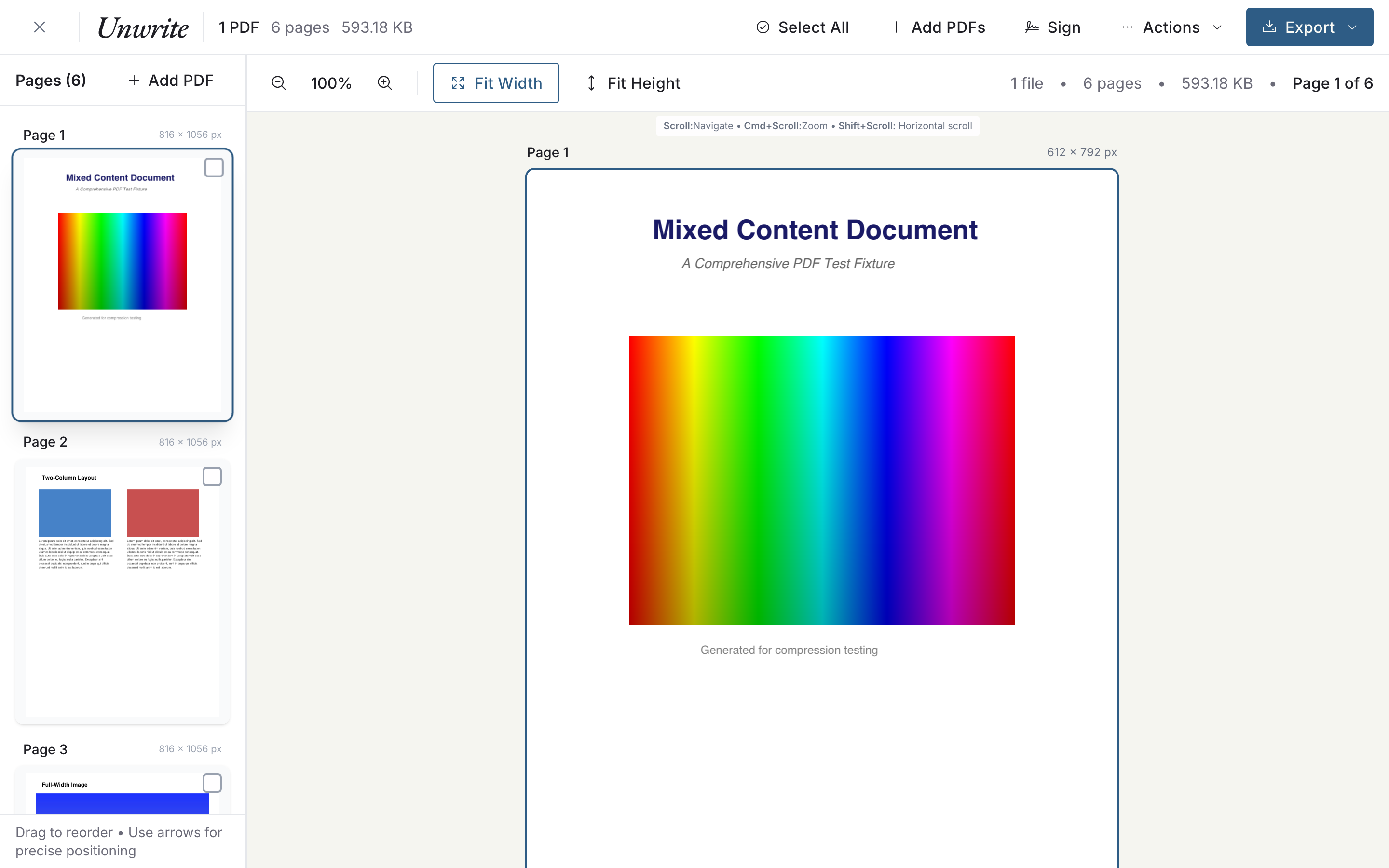
The toolbar presents all available actions clearly:
- Use the page sidebar to select, reorder, or delete pages
- Access tools from the top toolbar for merging, splitting, and more
Step 4: Make Your Edits
Every action provides immediate visual feedback. Reorder pages by dragging, see compression results in real-time, preview splits before committing. It feels like desktop software because it essentially is - just running in your browser.
Step 5: Save Your Work
Click "Download" to save your edited PDF. The file generates locally and downloads directly - no server roundtrip, no temporary cloud storage. Your edited document is ready to use immediately.
Deep Dive: Key Features
Merging PDFs Like a Pro
Need to combine multiple documents? Our merger handles it elegantly:
- 1Load your first PDF
- 2Click "Add More PDFs" to select additional files
- 3Drag thumbnails to reorder entire documents or individual pages
- 4Preview the combined result before saving
- 5Download your merged PDF with preserved formatting and bookmarks
The merger intelligently handles different page sizes, orientations, and formats. Even complex documents with forms and annotations merge cleanly.
Surgical PDF Splitting
Sometimes you need just specific pages from a larger document. Our splitter offers multiple approaches:
Intelligent Compression
- Extract Pages: Select specific pages to create a new PDF
- Split at Page: Divide a document at specific page numbers
- Remove Pages: Delete unwanted pages and save the rest
- Separate All: Create individual PDFs for each page
Our compression algorithm balances file size with quality:
Security scanning and sanitisation
- Smart Mode: Automatically optimises based on content type
- Custom Settings: Fine-tune compression for your specific needs
- Preview: See exactly how compression affects quality before saving
- Selective: Compress images while preserving text quality
Use the built-in security scan to detect risky content in PDFs, then sanitise to remove it. This helps strip malicious scripts or embedded files whilst keeping your document usable - and it all happens locally in your browser.
Signing
Click Sign and you can draw a signature with a mouse, stylus, or finger, type one, photograph a real signature on paper, or capture it on your phone and have it appear on the desktop. Place it on the page, resize it, and export. There's a full write-up in Sign a PDF without uploading it anywhere, including how the optional phone step works: the relay that carries the signature between your two devices only ever sees an encrypted blob it holds no key for.
Password-protected files
If a PDF is locked, the editor asks for the password, unlocks it in memory, and hands the clear copy to the rest of the tools. The password is never written anywhere - it lives as long as the tab does.
To be straight about the other direction: the editor does not add encryption. There is no "protect with a password" button, because we haven't built one. If you need to encrypt a document before sending it, use your operating system's export options or a dedicated tool.
Understanding Browser-Based PDF Editing
How Is This Possible?
WebAssembly (WASM) changed everything. This technology lets us run compiled code at near-native speed in browsers. We've compiled professional PDF libraries to WASM, bringing desktop-class PDF manipulation to the web without plugins or downloads.
Performance Considerations
While our editor handles most PDFs brilliantly, extremely large files (1000+ pages) might challenge your browser's memory limits. For these edge cases:
Feature limitations
- Work with sections rather than entire documents
- Close other browser tabs to free memory
- Use a modern browser (Chrome, Firefox, Safari, Edge) for best performance
Our privacy-first approach means some features are intentionally not included:
Real-World Use Cases
Legal Document Preparation
- No cloud storage integration (by design)
- No collaborative editing (documents stay on your device)
- No built-in OCR yet (scanned PDFs remain images unless processed elsewhere)
Lawyers use our editor to prepare case documents without client data touching cloud servers. Merge exhibits, extract relevant pages from lengthy documents, sign engagement letters, scrub metadata before a file goes out - all while maintaining client confidentiality.
Academic Publishing
Researchers combine multiple papers, extract specific chapters, and prepare submissions without worrying about unpublished work leaking. The metadata editor helps ensure proper document properties for journal submissions.
Business Proposals
Sales teams merge product sheets, case studies, and custom content into polished proposals. The compression feature ensures email-friendly file sizes without sacrificing quality graphics.
Personal Document Management
Organise tax documents, merge bank statements, extract pages from bills - all without uploading personal financial information to third-party servers. A practical way to keep records private while staying organised.
Advanced Techniques
Batch Processing
While we don't offer traditional batch processing, you can efficiently handle multiple files:
Workflow Integration
- 1Open multiple browser tabs with our editor
- 2Load different PDFs in each tab
- 3Apply operations in parallel
- 4Download all results when complete
Our editor fits seamlessly into existing workflows:
Quality Preservation
- Download edited PDFs directly to your preferred folder
- No account means no ecosystem lock-in
- Compatible with all PDF readers and editors
- Preserves all standard PDF features and compatibility
Our algorithms preserve document quality through operations:
Privacy Deep Dive
What Happens to Your PDFs?
- Vector graphics remain sharp at any zoom level
- Text stays selectable and searchable
- Image compression uses intelligent algorithms
- Fonts embed properly for consistent display
When you load a PDF in our editor:
Verification Methods
- 1The file transfers from your disk to your browser's memory
- 2JavaScript and WebAssembly process it entirely locally
- 3Edited versions exist only in your browser's memory
- 4Downloads save directly from memory to your disk
- 5Closing the tab erases everything from memory
Don't trust - verify our privacy claims. Open developer tools, go to the Network tab, then load and edit a PDF.
Here's what you'll actually see, because we would rather tell you than have you find it and wonder. The page fetches its own code and assets. Some of the heavy machinery is fetched on demand rather than shipped up front: the pdfcpu WebAssembly module comes from the jsDelivr CDN the first time an operation needs it, and pdf.js pulls character maps and standard font data from the same place when a document uses them. Those are libraries travelling towards your browser.
What you will not see is a request carrying your document. There is no upload endpoint for your file. It goes from your disk into browser memory, gets processed there, and comes back out through a download - which is exactly the direction that matters.
Compliance Benefits
For organisations with strict data handling requirements:
Power tips
Optimal File Preparation
- GDPR compliant by architecture - no data to protect
- HIPAA suitable - patient data never leaves your control
- Legal privilege maintained - documents stay in your possession
- No data processing agreements needed - we never see your data
For best results:
Troubleshooting Common Issues
Comparing to Desktop Software
- Scan documents at 300 DPI for clarity
- Use PDF/A format for long-term archival
- Flatten forms before merging if editing isn't needed
- Compress images before creating PDFs to start smaller
- Slow loading: Check file size and browser memory usage
- Font issues: Ensure fonts are embedded in source PDFs
- Can't select text: Original might be scanned - OCR needed
- Large file warning: Split into smaller sections first
Our browser-based editor matches most desktop PDF software features while adding unique benefits:
Advantages Over Desktop Apps
When Desktop Still Wins
Start Editing PDFs Privately
- No installation or updates required
- Works on any device with a browser
- No licence fees or subscriptions
- Guaranteed privacy - no telemetry or cloud features
- Always use the latest version
- Editing PDF text content directly
- Complex form creation
- Massive files (2GB+)
- Advanced prepress features
Ready to edit PDFs without compromising privacy? Visit our PDF Editor and experience professional-grade PDF manipulation that respects your privacy. No accounts, no uploads, no tracking - just powerful PDF editing that works entirely in your browser.
Whether you're handling sensitive business documents, personal financial records, or creative projects, our editor provides the features you need with the privacy you deserve. Because your documents should remain under your control, always.